
PrestaShop Connection Guide
Follow these steps to connect your PrestaShop store to SEEGEA in just a few minutes.
Enable the PrestaShop WebService
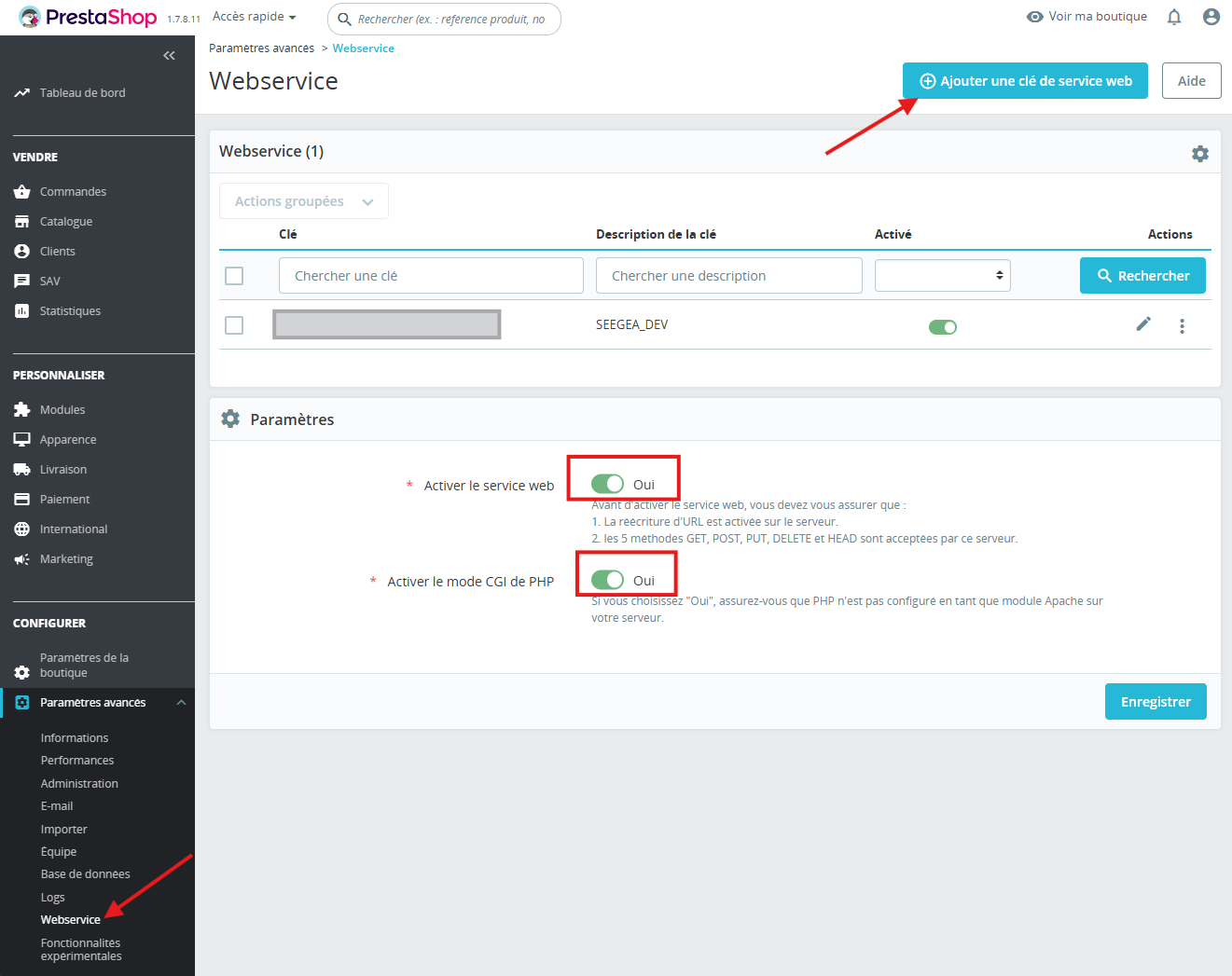
Log into your PrestaShop back office, then go to Advanced Parameters → Webservice. In the "Settings" section at the bottom of the page:
- Enable web service → Yes
- Enable PHP CGI mode → Yes
- Click "Save"
Create a web service key
On the same Webservice page, click the "Add new webservice key" button in the top right corner.
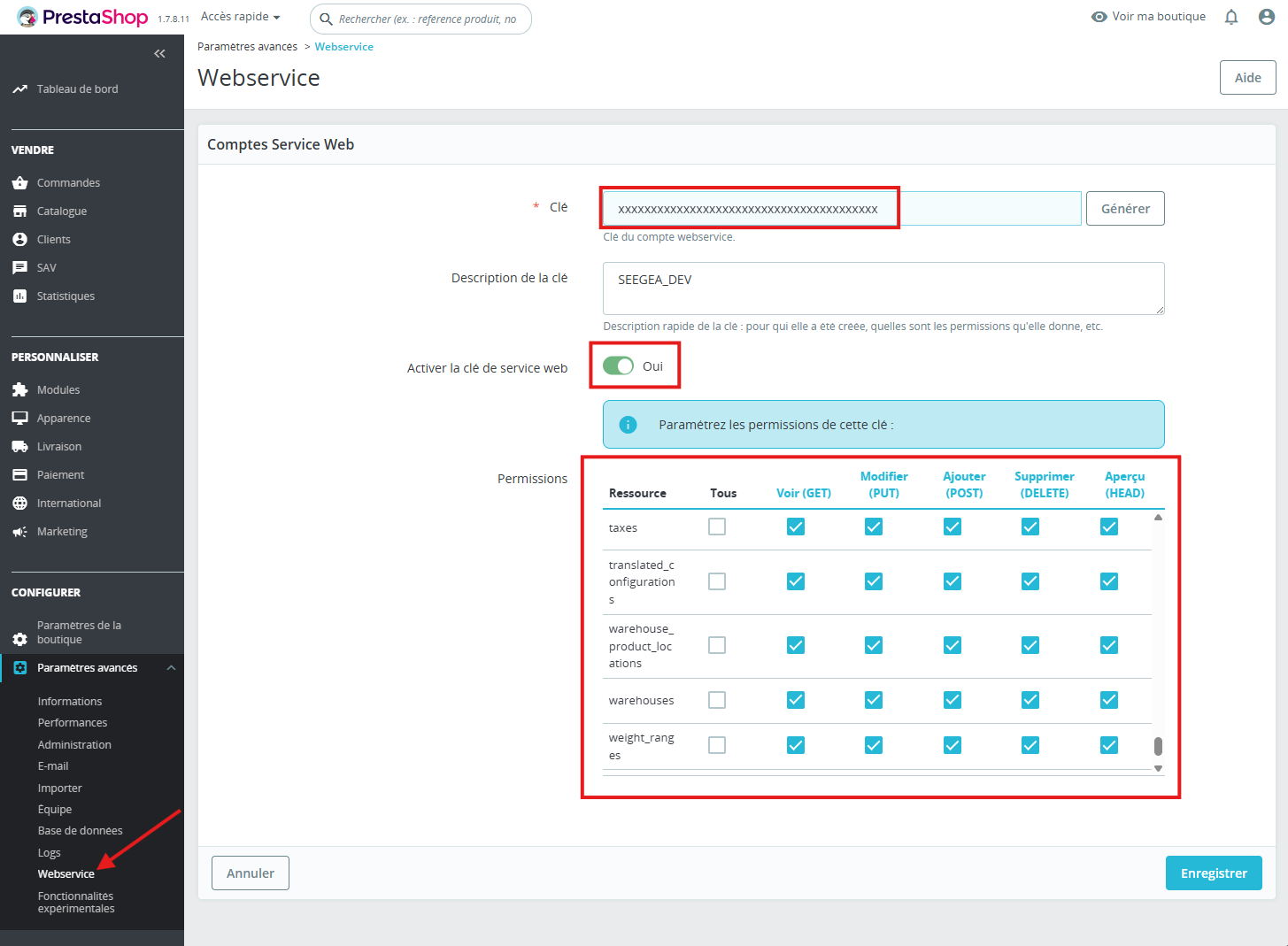
- a.Click "Generate" to create a random 32-character key
- b.In "Key description", enter SEEGEA
- c.Make sure "Enable webservice key" is set to Yes
- d.In the "Permissions" section, check all boxes (GET, PUT, POST, DELETE, HEAD) for all resources
- e.Click "Save" and copy the 32-character key
Make sure to copy the key before leaving the page. You'll need it to connect SEEGEA. Never share it publicly.
Find your URLs
You'll need two pieces of information from your browser:
Your store URL
This is your website address, for example www.mystore.com. You can find it in your browser's address bar.

Back office URL (optional but recommended)
When you're in the PrestaShop back office, look at the address bar: you'll see a URL like www.mystore.com/adminXXXXXXXX/index.php. The "adminXXXXXXXX" part is your unique admin path. Copy the full URL up to that part.

Tip: the back office URL allows SEEGEA to create direct links to your product pages in the PrestaShop back office. Without this URL, the "View in back office" links will be disabled.
Connect in SEEGEA
Go back to SEEGEA and fill in the 3 fields:
- Store URL: www.mystore.com (your site's domain)
- WebService API key: the 32-character key copied in step 2
- Back office URL (optional): the full URL of your PrestaShop back office
Click "Connect my PrestaShop store" — SEEGEA will automatically test the connection and import your products.
Connect my storeNeed help? Contact us at support@seegea.com